
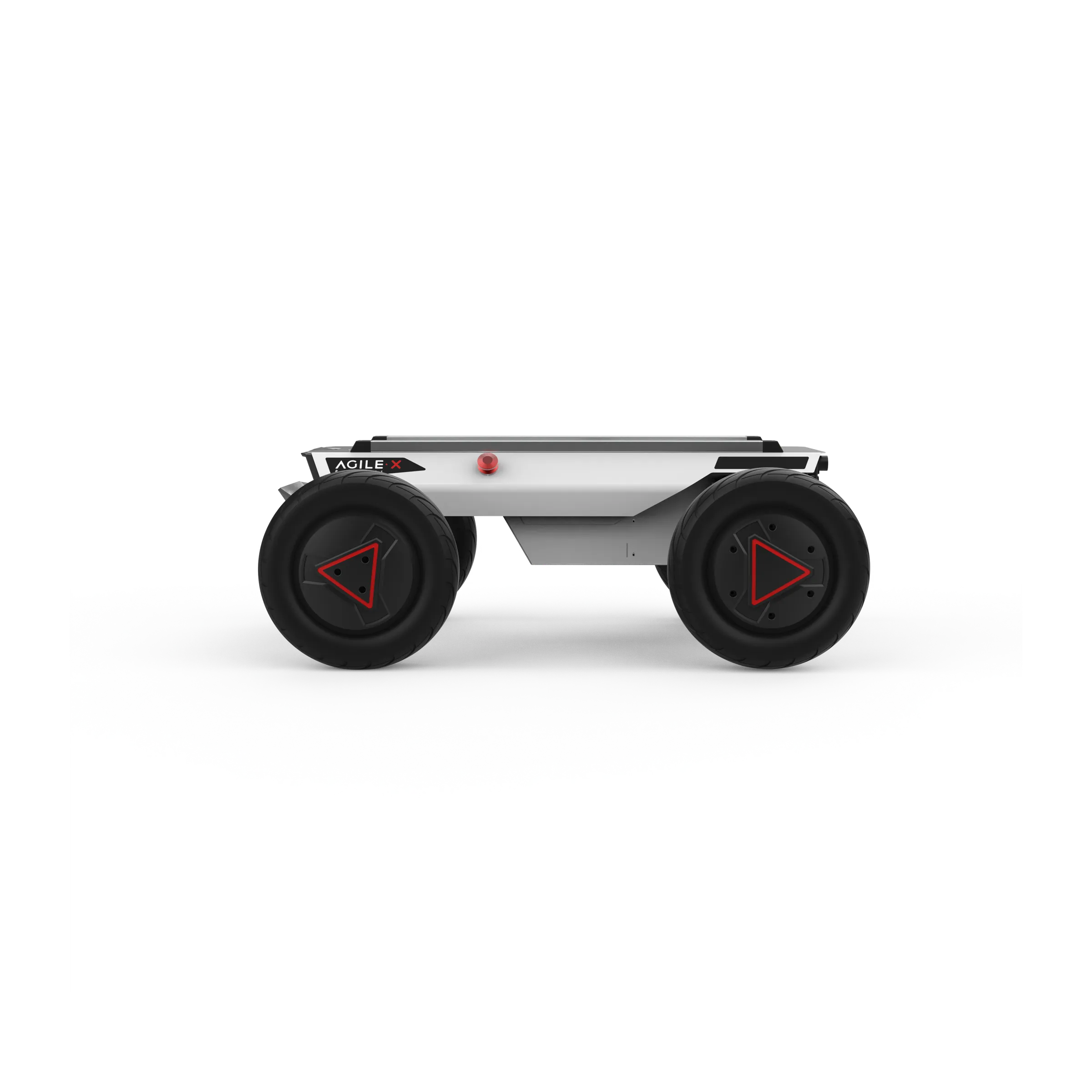
AgileX Hunter 2.0
This guide provides essential information for getting started with the AgileX Hunter 2.0.
Pre-requisites
Before operating the Hunter 2.0, ensure you have:
Completed safety training (see General Safety)
Access to the robot’s CAN interface
A compatible RC transmitter (if using remote control)
Adequate workspace with proper clearance
Robot App
The Hunter 2.0 supports development via CAN bus interface. AgileX provides:
Open-source SDK
C++ and ROS packages
CAN bus protocol documentation
Robot Webserver
If configured with an onboard computer, the robot may have a web interface accessible via the robot’s IP address.
Charging Robot
The Hunter 2.0 is equipped with a 10A charger by default.
Charging Procedure:
Ensure the Hunter 2.0 chassis is powered off (Q3 switch in OFF position)
Connect the charger plug to the Q6 charging interface on the rear panel
Plug the charger into a power outlet and turn on the charger switch
Charging Times:
30Ah Battery: Approximately 3-4 hours
60Ah Battery: Approximately 6-7 hours
Battery Voltage Levels:
Fully charged: ~26.8 V
Normal operating: 24-26.8 V
Low battery warning: < 24.5 V
Critical (auto-shutdown): < 24.0 V
Warning
Always monitor the charger and battery during charging for safety. Do not charge in temperatures outside -10°C to 40°C range.
Charging Controller
The battery charging status should be monitored via the charger’s own status LED. The chassis does not have a dedicated charging indicator light.
Emergency Stop
The Hunter 2.0 has an emergency stop button located on top of the chassis.
Activating Emergency Stop:
Press the red emergency stop button to immediately halt all movement
The robot will engage the parking brake automatically
Resetting Emergency Stop:
Twist the emergency stop button clockwise to release it
Reset the SWA switch on the RC transmitter before movement is possible
Power On
Pre-Startup Checks:
Inspect the robot for any visible damage
Ensure both emergency stop buttons are released
Check that the Q3 drive power switch on the rear panel is not pressed down
Startup Procedure:
Press the Q3 button to turn on the chassis
The voltmeter should display the battery voltage (normal: 24-26.8 V)
Both front and rear lights should illuminate
If the beeper emits continuous warnings, the battery is low - charge before use
Power Off
Press Q3 to cut off power supply
Wait for all lights to extinguish
For extended storage, ensure the battery is charged to at least 50%
Basic Operation
Remote Control
Setup:
Ensure the chassis is powered on
Turn on the RC transmitter (press and hold POWER button)
Move SWB switch to remote control mode (middle position)
Release parking with SWA switch (up position)
Controller Mapping:
Control |
Function |
|---|---|
SWA |
Parking mode (Up: released, Down: engaged) |
SWB |
Control mode (Up: command mode, Middle: RC mode) |
S1 |
Throttle (forward/backward movement) |
S2 |
Steering (left/right) |
KEY1 |
Clear error messages |
KEY2 |
Settings menu |
Display Information:
Vol: Battery voltage
Car: Chassis operating status
Batt: Remaining battery percentage
P: Parking status
Network Interface
CAN Bus Connection:
The Hunter 2.0 uses CAN bus for communication. Connect via the USB-to-CAN module:
Connect the USB-to-CAN adapter to your computer
Connect the CAN interface to the robot’s expansion port
Configure CAN interface:
sudo ip link set can0 up type can bitrate 500000Verify connection:
candump can0
SSH Connection (if onboard computer is installed):
Connect to the robot’s network
SSH to the robot:
ssh user@<robot_ip>
First Test
Power on the robot following the Power On procedure
Turn on the RC transmitter
Set SWB to remote control mode
Release parking (SWA up)
Gently push S1 forward to move the robot
Test steering with S2
Engage parking (SWA down) when finished