
The Husky A300 ships with ROS 2 Jazzy pre-installed and configured on Ubuntu 24.04.
Note
ROS 2 Humble is not supported on the Husky A300. The Humble tabs are included for reference only.
For detailed ROS 2 documentation, refer to the Clearpath ROS 2 Documentation.
Pre-requisites
Safety Guidelines Robotic Manipulator Safety.
Power On Power On.
Network Interface Network Interface.
Installation Robot Installation.
Installation
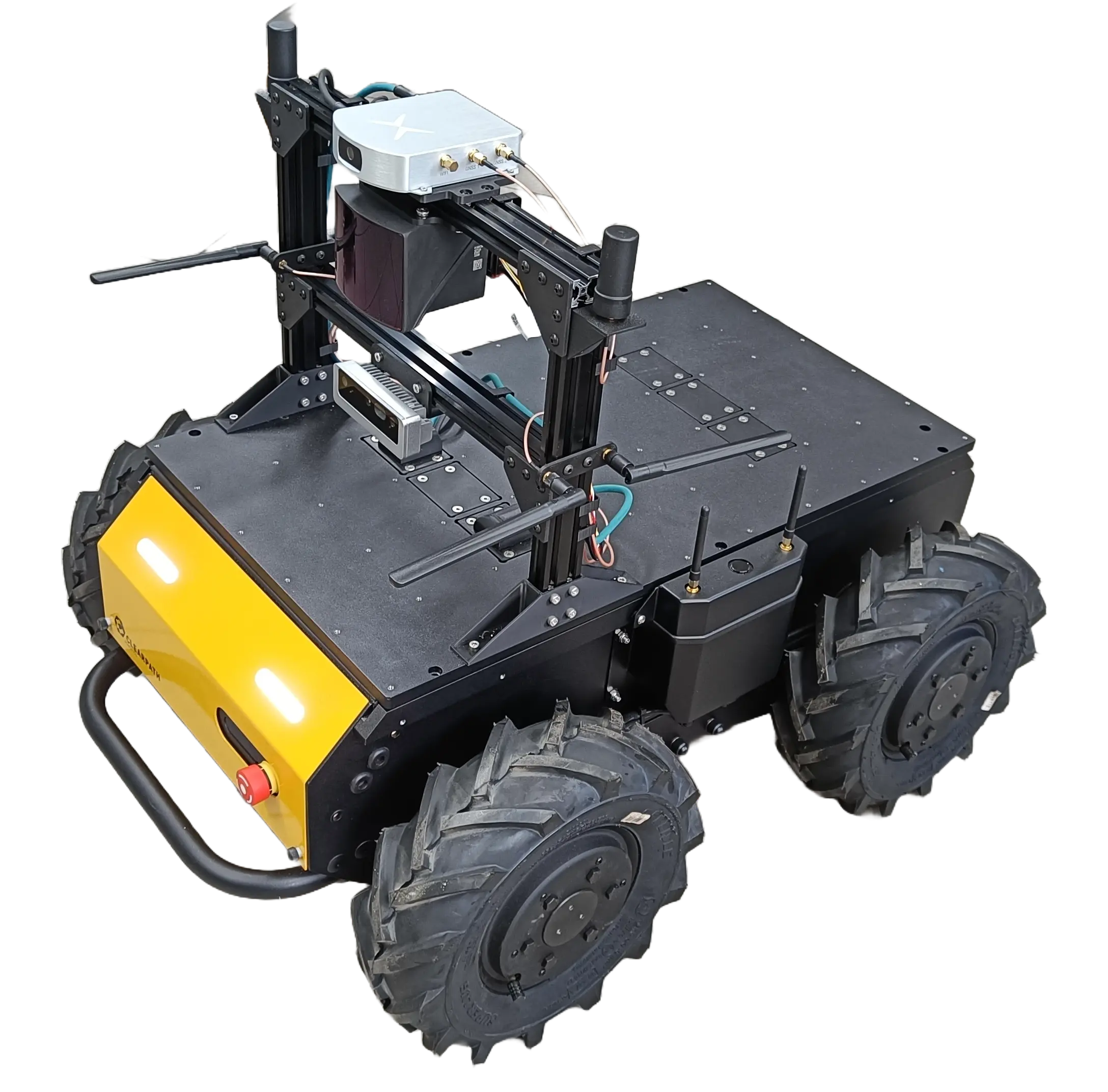
Husky A300 Custom Integration
Installation on Robot
The Husky A300 comes with ROS 2 Jazzy pre-installed on Ubuntu 24.04. If you need to reinstall or update:
sudo apt-get update
sudo apt-get install --reinstall ros-jazzy-clearpath-robot
Verify that udev rules are installed:
ls /usr/lib/udev/rules.d/60-ros-jazzy-clearpath-robot.rules
Installation on External PC
To set up a remote workstation for development and monitoring:
Install Ubuntu 24.04 on your workstation
Install ROS 2 Jazzy following the official instructions:
sudo apt install software-properties-common
sudo add-apt-repository universe
sudo apt update && sudo apt install curl -y
sudo curl -sSL https://raw.githubusercontent.com/ros/rosdistro/master/ros.key -o /usr/share/keyrings/ros-archive-keyring.gpg
echo "deb [arch=$(dpkg --print-architecture) signed-by=/usr/share/keyrings/ros-archive-keyring.gpg] http://packages.ros.org/ros2/ubuntu $(. /etc/os-release && echo $UBUNTU_CODENAME) main" | sudo tee /etc/apt/sources.list.d/ros2.list > /dev/null
sudo apt update
sudo apt install ros-jazzy-desktop
Install Clearpath packages:
sudo apt-get update
sudo apt-get install ros-jazzy-clearpath-desktop
Configure ROS 2 environment:
echo "source /opt/ros/jazzy/setup.bash" >> ~/.bashrc
source ~/.bashrc
export ROS_DOMAIN_ID=0
export RMW_IMPLEMENTATION=rmw_cyclonedds_cpp
Install CycloneDDS (recommended for Clearpath robots):
sudo apt install ros-jazzy-rmw-cyclonedds-cpp
Warning
ROS 2 Humble is not supported on the Husky A300. The A300 ships with ROS 2 Jazzy on Ubuntu 24.04.
Please refer to the Jazzy tab for installation instructions.
Autostart
Autostart Configuration
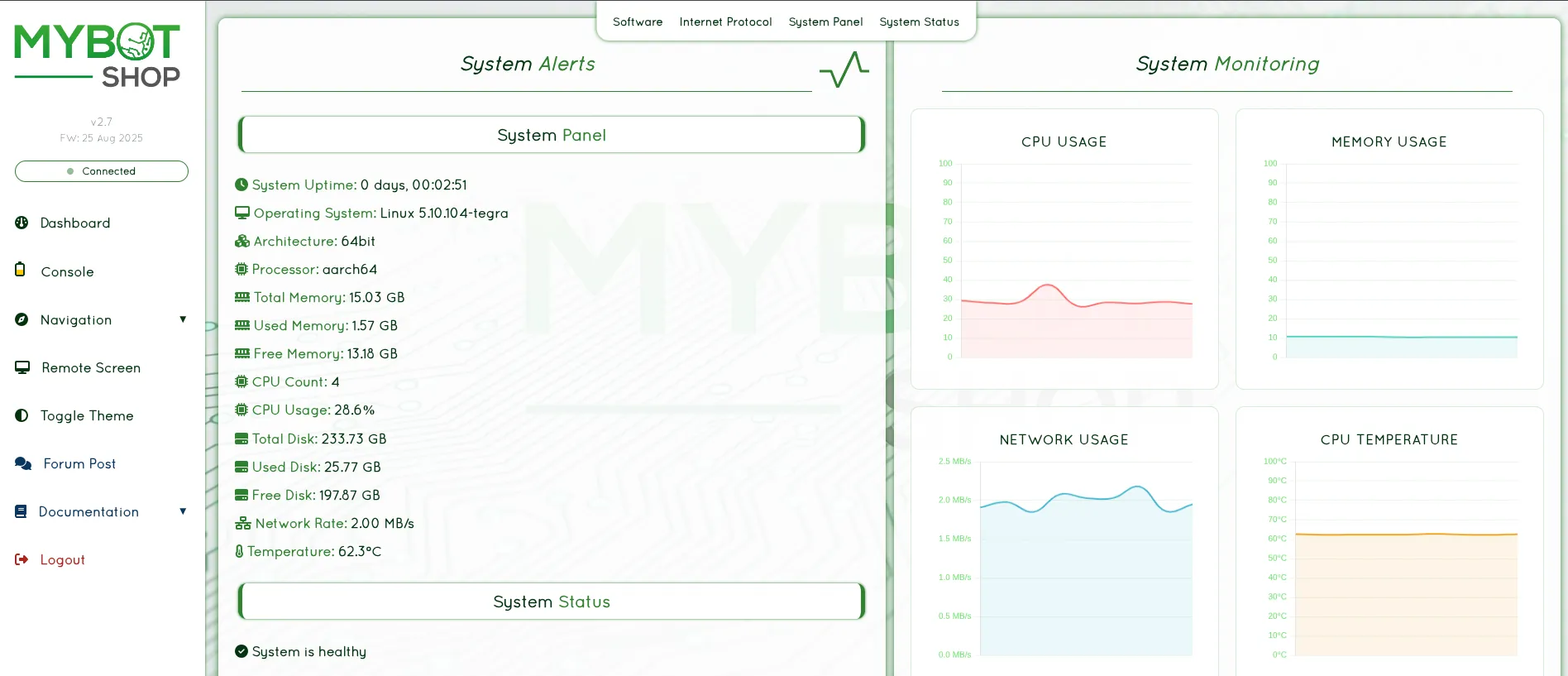
Husky A300 System Services
The Husky A300 uses systemd services to automatically start ROS 2 nodes on boot.
Check Service Status:
sudo systemctl status clearpath-robot.service
Or via the web interface:
sudo service clearpath-platform status
sudo service hsky-webserver status
Restart Service:
sudo systemctl restart clearpath-robot.service
View Service Logs:
journalctl -u clearpath-robot.service -f
Service Status Indicators
Green - Service running correctly
Red - Startup job failed
Grey - Service not started
Robot YAML Configuration
In ROS 2 Jazzy, the robot is configured via a YAML file instead of environment variables.
Location: /etc/clearpath/robot.yaml
Example Configuration:
system:
  ros2:
    namespace: ""
    domain_id: 0
    rmw_implementation: rmw_cyclonedds_cpp
platform:
  model: a300
  serial_number: A300-XXXX
extras:
  ros2:
    - package: my_custom_package
      launch_file: my_launch.py
Apply Configuration Changes:
After modifying robot.yaml, restart the service:
sudo systemctl restart clearpath-robot.service
MYBOTSHOP Autostart
For MYBOTSHOP custom integrations, autostart is managed via:
ros2 run hsky_autostart startup_installer.py
The startup configuration is defined in hsky_autostart/startup_installer.py.
For detailed configuration options, refer to the Clearpath Configuration Documentation.
Warning
ROS 2 Humble is not supported on the Husky A300. The A300 ships with ROS 2 Jazzy on Ubuntu 24.04.
Please refer to the Jazzy tab for autostart configuration.
Webserver
Robot Web Interface
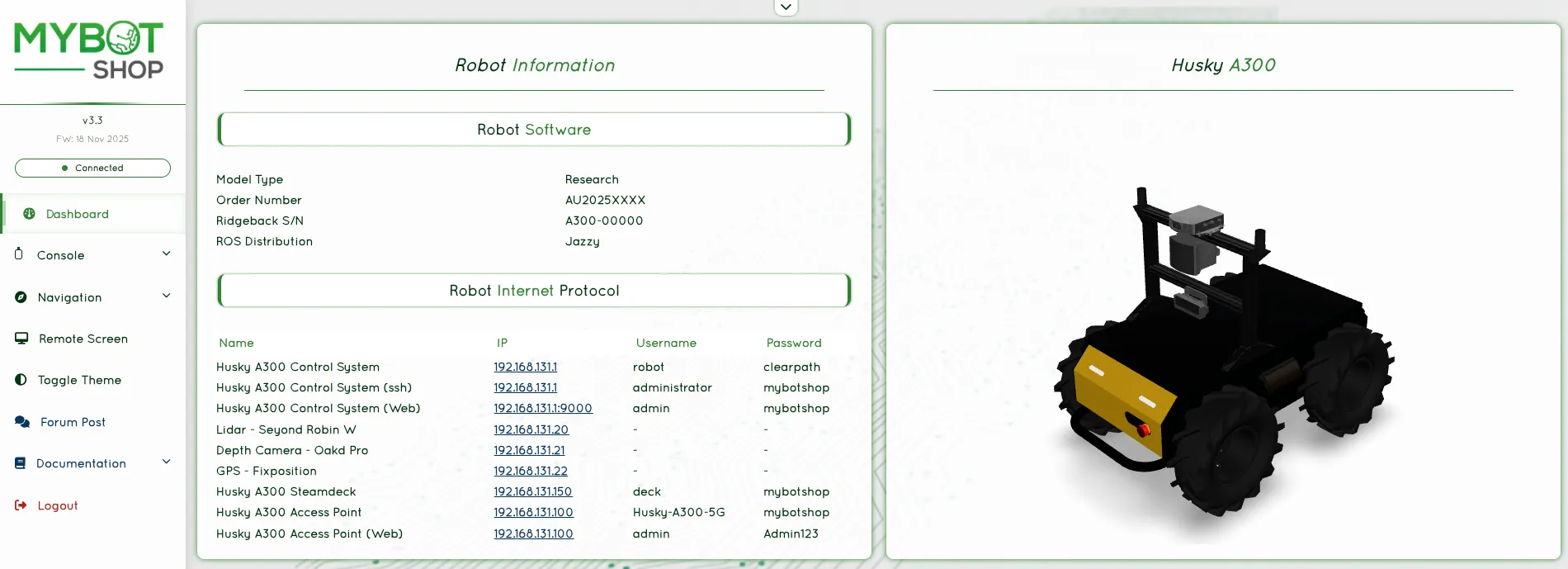
Husky A300 Web Dashboard
The Husky A300 includes a web-based interface for monitoring and basic control.
Accessing the Web Interface:
Connect to the robot’s network
Open a web browser
Navigate to:
http://192.168.131.1:9000/
Default Credentials:
Username:
adminPassword:
mybotshop
Login
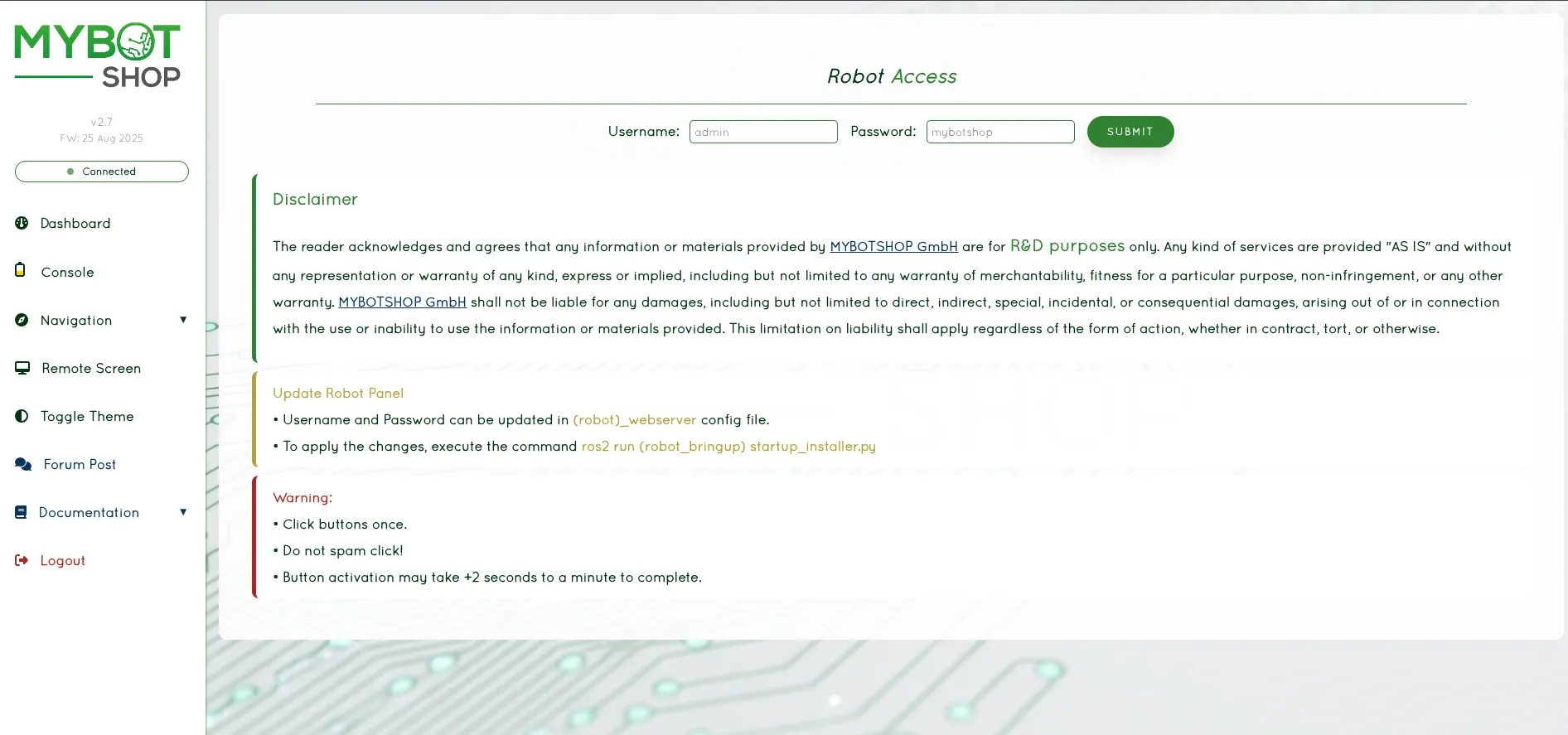
Webserver Login
Dashboard
Webserver Dashboard
The dashboard provides:
View IP Address of the Husky A300
View system load and status
Console
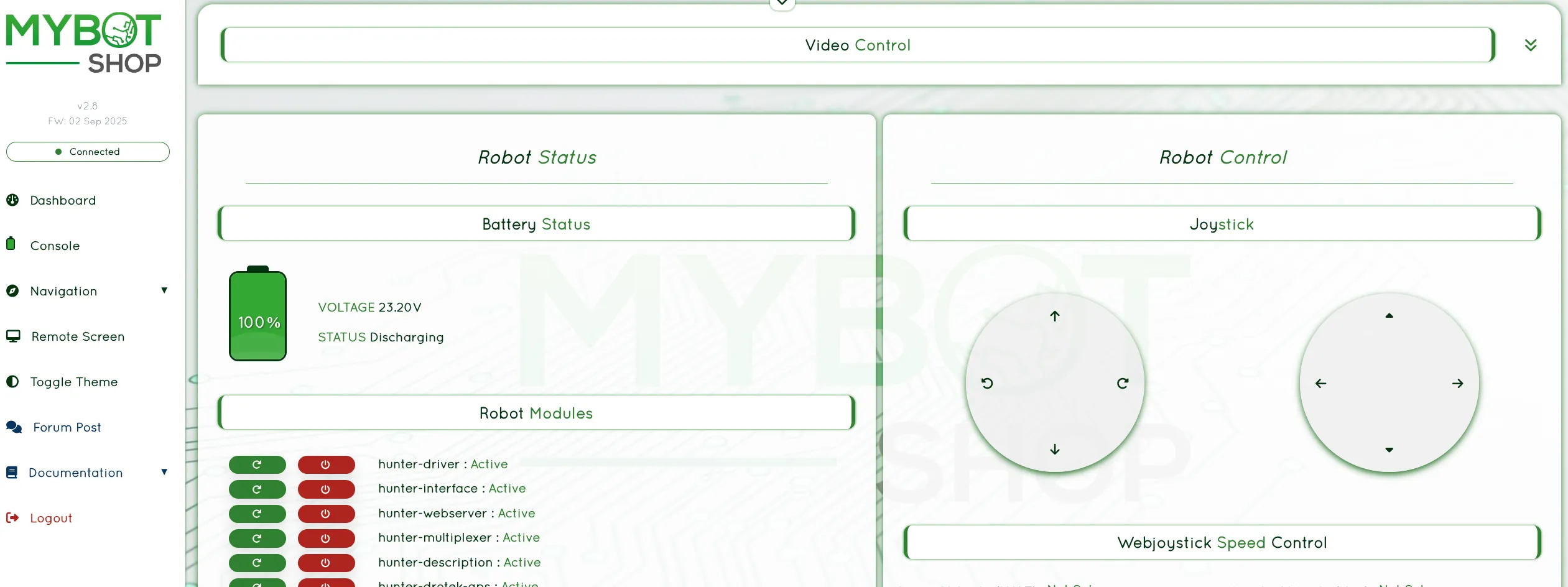
Webserver Console
From the Console you can:
Enable/Disable Husky A300 ROS 2 services
Record system logs
Monitor battery status
Use pre-configured action buttons
Use the web joystick
View online image streams
Remote Desktop
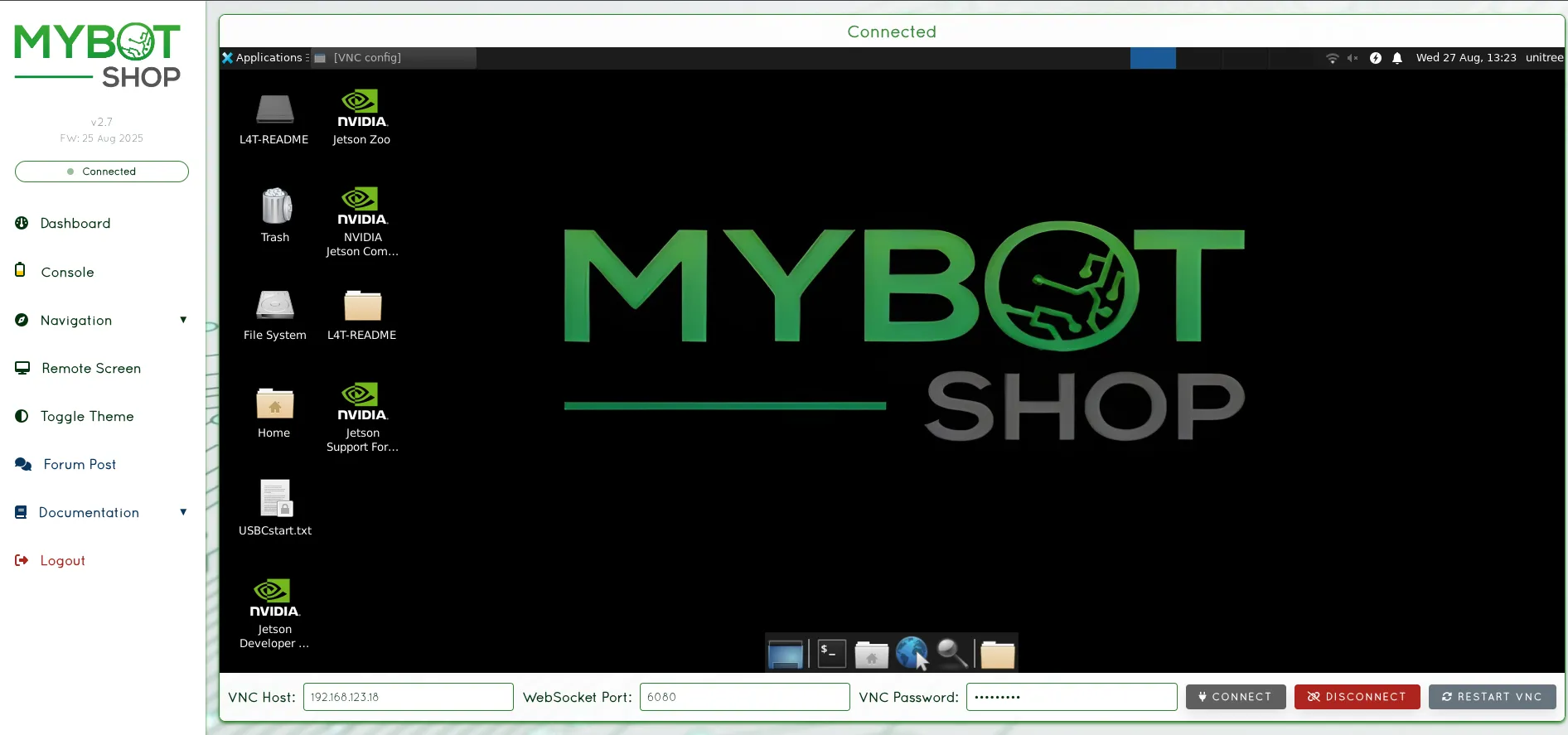
Husky A300 Remote Desktop (VNC)
Provides access to the on-board screen of the Husky A300’s computer.
Indoor Navigation
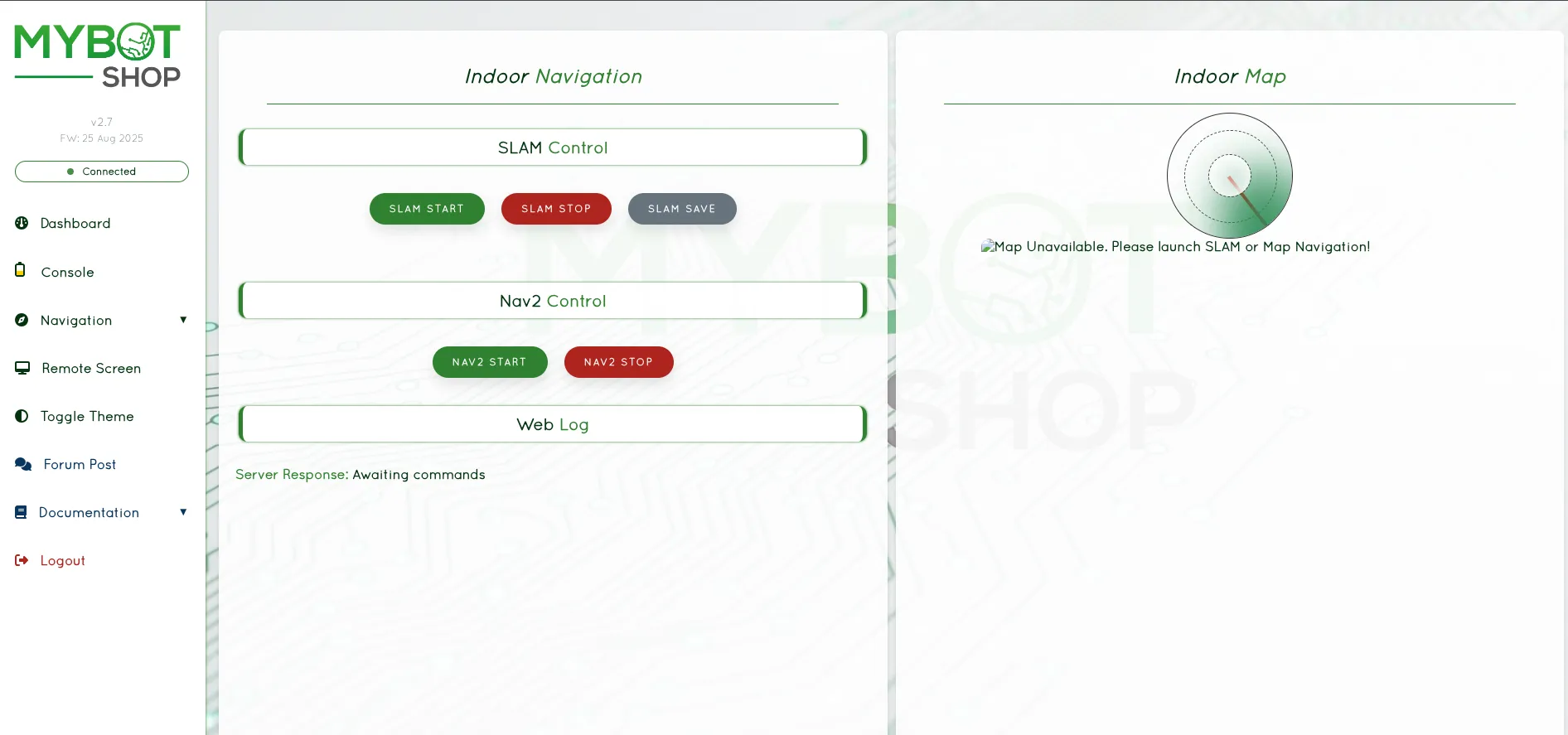
Indoor Navigation Interface
Outdoor Navigation
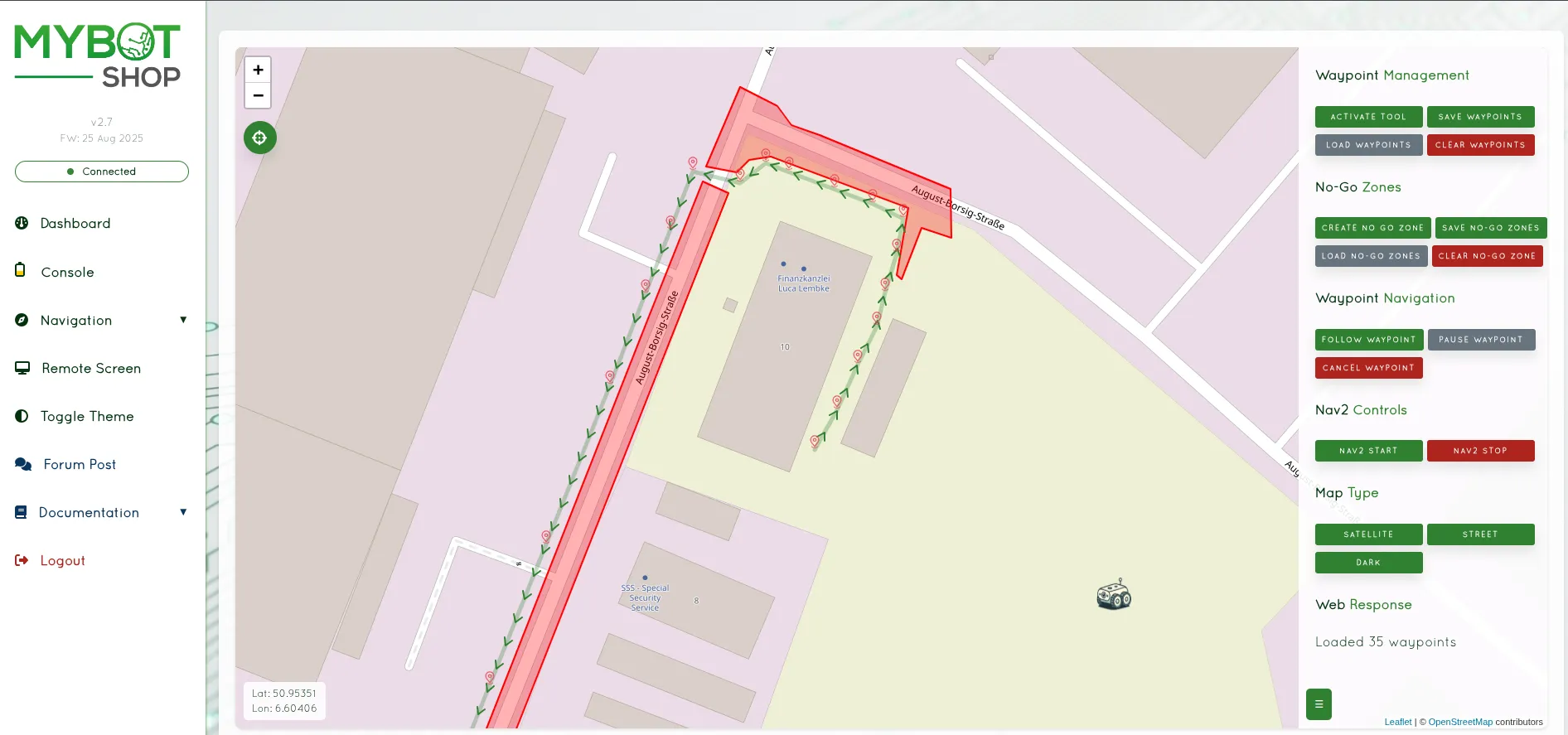
Outdoor Navigation Interface
ROS 2 Web Bridge
For advanced web-based ROS 2 interaction using rosbridge:
sudo apt-get install ros-jazzy-rosbridge-server
ros2 launch rosbridge_server rosbridge_websocket_launch.xml
This enables WebSocket-based communication with ROS 2 topics and services.
Foxglove WebSocket
For modern web visualization, use Foxglove Bridge:
sudo apt install ros-jazzy-foxglove-bridge
ros2 launch foxglove_bridge foxglove_bridge_launch.xml
Connect using Foxglove Studio for real-time visualization and debugging.
Warning
ROS 2 Humble is not supported on the Husky A300. The A300 ships with ROS 2 Jazzy on Ubuntu 24.04.
Please refer to the Jazzy tab for webserver information.
Teleoperation
Joystick Teleoperation
The Husky A300 supports teleoperation via a paired PlayStation-style controller.
Controller Mapping:
PS Button: Connect controller to robot
L1 (Hold): Slow mode - max 0.3 m/s
R1 (Hold): Fast mode - max 2.0 m/s
Left Thumbstick: Movement control
Keyboard Teleoperation
For keyboard control from a connected workstation:
ros2 run teleop_twist_keyboard teleop_twist_keyboard --ros-args -r cmd_vel:=/cmd_vel
Keyboard Controls:
i: Forwardk: Stopj: Turn leftl: Turn right,: Backwardu: Forward-left curveo: Forward-right curve
Custom Velocity Commands
To send velocity commands programmatically:
ros2 topic pub /cmd_vel geometry_msgs/msg/Twist "{linear: {x: 0.5}, angular: {z: 0.0}}"
Teleoperation via RQT
For a graphical teleoperation interface:
ros2 run rqt_robot_steering rqt_robot_steering --ros-args -r cmd_vel:=/cmd_vel
Warning
ROS 2 Humble is not supported on the Husky A300. The A300 ships with ROS 2 Jazzy on Ubuntu 24.04.
Please refer to the Jazzy tab for teleoperation instructions.
Visualization
RViz2 Visualization
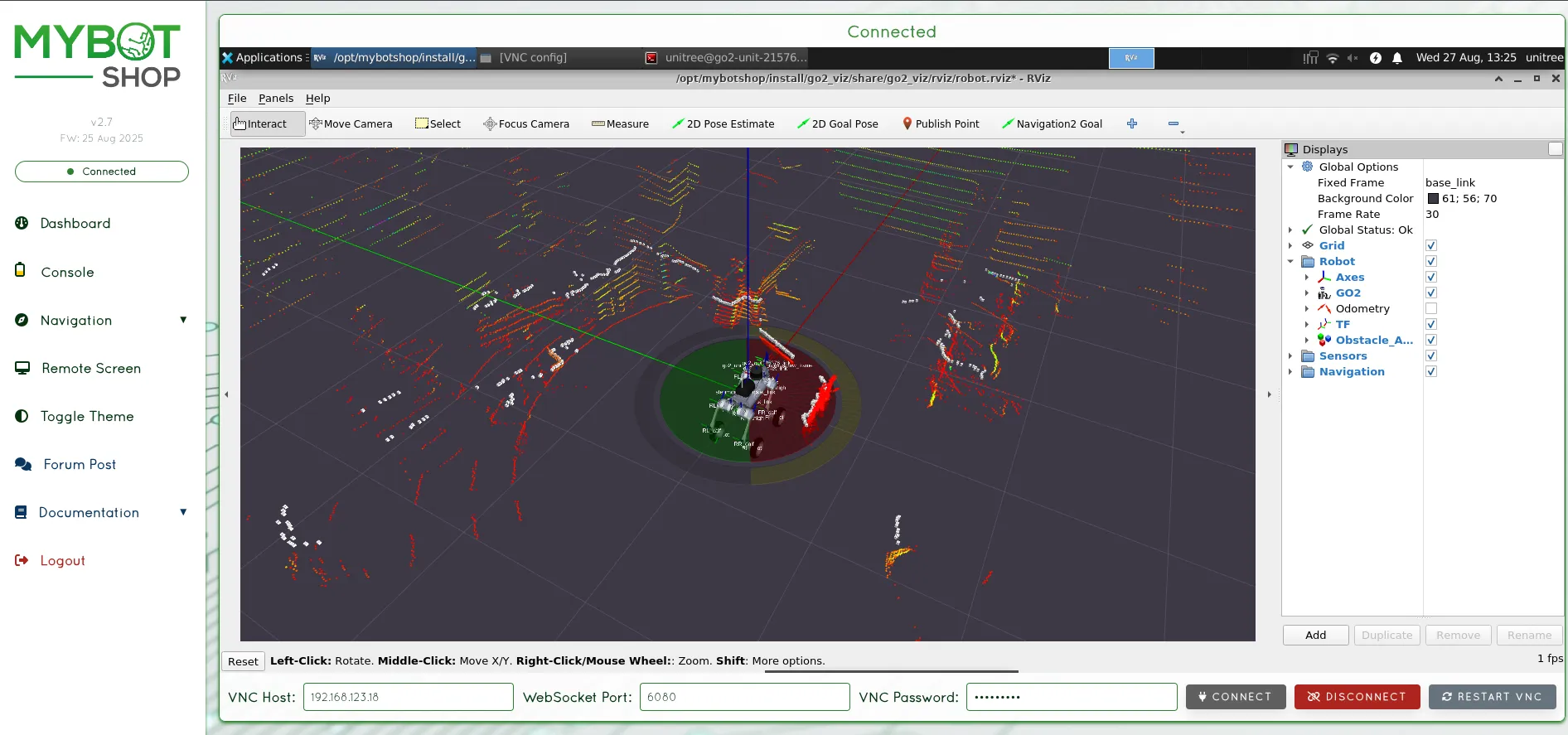
Husky A300 RViz2 Visualization
To visualize the robot state and sensor data:
ros2 launch husky_a300_viz view_robot.launch.py
Or using Clearpath packages:
ros2 launch clearpath_viz view_robot.launch.py
This launches RViz2 with a pre-configured layout showing:
Robot model
TF frames
Sensor data (if available)
Odometry
Custom RViz Configuration
To save your custom RViz configuration:
Configure RViz displays as desired
File > Save Config As >
/path/to/my_config.rviz
To load a custom configuration:
ros2 launch clearpath_viz view_robot.launch.py rviz_config:=/path/to/my_config.rviz
Foxglove Studio
For an alternative web-based visualization:
Install Foxglove Bridge:
sudo apt install ros-jazzy-foxglove-bridgeLaunch the bridge:
ros2 launch foxglove_bridge foxglove_bridge_launch.xmlOpen Foxglove Studio and connect to your robot’s IP address.
Viewing TF Frames
To visualize the transform tree:
ros2 run tf2_tools view_frames
This generates a PDF showing the complete TF tree structure.
Warning
ROS 2 Humble is not supported on the Husky A300. The A300 ships with ROS 2 Jazzy on Ubuntu 24.04.
Please refer to the Jazzy tab for visualization instructions.
Sensors
Default Sensors
The Husky A300 includes the following built-in sensors:
IMU: Inertial Measurement Unit for orientation and acceleration data
Wheel Encoders: For odometry calculation
IMU Data:
ros2 topic echo /imu/data
Odometry:
ros2 topic echo /odometry/filtered
Depth Cameras
Supported depth cameras include Intel RealSense and ZED series.
Example: Adding a RealSense D435 to robot.yaml:
sensors:
  cameras:
    - model: intel_realsense
      urdf_enabled: true
      launch_enabled: true
      parent: top_plate_link
      xyz: [0.15, 0.0, 0.1]
      rpy: [0.0, 0.0, 0.0]
Lidars
Supported LiDAR sensors include Velodyne, Ouster, and SICK series.
Example: Adding a Velodyne VLP-16 to robot.yaml:
sensors:
  lidar3d:
    - model: velodyne_vlp16
      urdf_enabled: true
      launch_enabled: true
      parent: top_plate_link
      xyz: [0.0, 0.0, 0.2]
      rpy: [0.0, 0.0, 0.0]
GPS
GPS receivers can be added for outdoor navigation.
Example: Adding a GPS receiver to robot.yaml:
sensors:
  gps:
    - model: nmea_gps
      urdf_enabled: true
      launch_enabled: true
      parent: top_plate_link
      xyz: [0.0, 0.0, 0.3]
Auxiliary Sensors
Additional sensors and accessories can be configured through the robot.yaml file.
Refer to the Clearpath Integration Guide
for detailed sensor integration instructions.
Warning
ROS 2 Humble is not supported on the Husky A300. The A300 ships with ROS 2 Jazzy on Ubuntu 24.04.
Please refer to the Jazzy tab for sensor information.
Simulation
Gazebo Harmonic Simulation
The Husky A300 can be simulated in Gazebo Harmonic with ROS 2 Jazzy.
Prerequisites:
Set up your simulation workspace:
mkdir -p ~/clearpath_sim_ws/src
cd ~/clearpath_sim_ws/src
git clone https://github.com/clearpathrobotics/clearpath_simulator.git
vcs import . < clearpath_simulator/clearpath_sim.repos --recursive
Install Dependencies:
cd ~/clearpath_sim_ws
rosdep install -r --from-paths src --rosdistro jazzy -i -y
sudo apt install ros-jazzy-rmw-cyclonedds-cpp
Build the Workspace:
colcon build --symlink-install
source install/setup.bash
Launch Simulation:
ros2 launch clearpath_gz simulation.launch.py
Robot Configuration for Simulation
Create a robot.yaml file to customize your simulated robot:
system:
  ros2:
    namespace: a300
    domain_id: 0
platform:
  model: a300
Isaac Sim
NVIDIA Isaac Sim support is available for advanced simulation scenarios. Refer to the Clearpath Isaac Sim Documentation for setup instructions.
Warning
ROS 2 Humble is not supported on the Husky A300. The A300 ships with ROS 2 Jazzy on Ubuntu 24.04.
Please refer to the Jazzy tab for simulation instructions.
Packages
Robot Description
The clearpath_description package contains URDF models for the Husky A300.
ros2 launch clearpath_viz view_model.launch.py
In ROS 2 Jazzy, robot configuration uses a YAML file (robot.yaml) instead of environment variables.
Twist Mux
The twist_mux package manages multiple velocity input sources with priority handling.
Topics are prioritized in the following order (highest to lowest):
Emergency stop commands
Joystick teleoperation
Navigation commands
External commands
EKF Localization
The robot_localization package provides Extended Kalman Filter (EKF) based localization,
fusing wheel odometry with IMU data.
To view the current odometry:
ros2 topic echo /odometry/filtered
Clearpath Common Packages
In ROS 2 Jazzy, Clearpath uses common packages across all supported platforms:
clearpath_common- Shared configurations and utilitiesclearpath_config- Robot YAML configuration handlingclearpath_description- Robot URDF modelsclearpath_generator- Configuration file generatorsclearpath_msgs- Custom message definitionsclearpath_platform- Platform-specific drivers
Warning
ROS 2 Humble is not supported on the Husky A300. The A300 ships with ROS 2 Jazzy on Ubuntu 24.04.
Please refer to the Jazzy tab for package information.
Debugging
Common Debugging Commands
List Active Topics:
ros2 topic list
Check Topic Publishing Rate:
ros2 topic hz /odometry/filtered
View Node Information:
ros2 node list
ros2 node info /robot_state_publisher
Check TF Tree:
ros2 run tf2_tools view_frames
This generates a PDF showing the TF tree structure.
Diagnostic Tools
System Diagnostics:
ros2 topic echo /diagnostics
Hardware Status:
ros2 topic echo /platform/mcu/status
RQT Robot Monitor:
ros2 run rqt_robot_monitor rqt_robot_monitor
Log Files
System logs are stored in:
/var/log/syslog- System messages~/.ros/log/- ROS 2 log files
To view real-time ROS 2 logs:
ros2 run rqt_console rqt_console
Reinstalling Packages
If packages become corrupted:
sudo apt-get update
sudo apt-get install --reinstall ros-jazzy-clearpath-robot
Checking Configuration
Verify your robot.yaml is valid:
ros2 run clearpath_config check_config /etc/clearpath/robot.yaml
Warning
ROS 2 Humble is not supported on the Husky A300. The A300 ships with ROS 2 Jazzy on Ubuntu 24.04.
Please refer to the Jazzy tab for debugging information.
Miscellanious
Backing Up Robot Configuration
Before making changes, back up your robot configuration:
git clone https://github.com/clearpathrobotics/robot-backup
cd robot-backup
./backup.sh
Keep a copy of your robot.yaml file for use when upgrading or restoring.
Upgrading from Humble to Jazzy
If upgrading from ROS 2 Humble:
Back up your
robot.yamlconfigurationFollow the Clearpath Upgrade Guide
Restore your
robot.yamlafter upgrade
Updating Packages
To update all Clearpath packages:
sudo apt-get update
sudo apt-get upgrade ros-jazzy-clearpath-*
Network Configuration
Check Network Status:
ip addr
nmcli device status
Configure Static IP with Netplan:
Edit netplan configuration:
sudo nano /etc/netplan/01-network-config.yaml
Example configuration:
network:
  version: 2
  ethernets:
    eth0:
      addresses:
        - 192.168.131.1/24
Apply changes:
sudo netplan apply
Time Synchronization
Ensure time is synchronized for proper TF operation:
timedatectl status
sudo systemctl enable systemd-timesyncd
sudo systemctl start systemd-timesyncd
CycloneDDS Configuration
For multi-robot setups or complex networks, configure CycloneDDS:
Create /etc/cyclonedds/cyclonedds.xml:
<?xml version="1.0" encoding="UTF-8" ?>
<CycloneDDS>
  <Domain>
    <Id>0</Id>
  </Domain>
</CycloneDDS>
Export the configuration:
export CYCLONEDDS_URI=/etc/cyclonedds/cyclonedds.xml
Warning
ROS 2 Humble is not supported on the Husky A300. The A300 ships with ROS 2 Jazzy on Ubuntu 24.04.
Please refer to the Jazzy tab for additional information.